

Forgetting your iPhone passcode is frustrating. You may feel locked out of your digital world, but there are reliable ways to regain access. Apple prioritizes security, ensuring only rightful owners can unlock their devices. This guide provides the best solutions, expert insights, and pro tips to recover your iPhone without stress.
Why Apple’s Security Measures Matter
Apple implements strict security measures to protect user data. If you enter the wrong passcode multiple times, your iPhone disables itself. While this protects against unauthorized access, it can be inconvenient if you forget your passcode.
A study by Statista shows that 39% of iPhone users forget passwords at least once a year. With security being Apple’s top priority, bypassing the lock screen without proper authentication is nearly impossible.
The Only Reliable Ways to Unlock Your iPhone
There are three proven methods to unlock an iPhone when you forget the passcode:
- Using iTunes (or Finder on macOS Catalina and later)
- Using iCloud’s Find My iPhone
- Using Recovery Mode
Let’s dive into each method step by step.
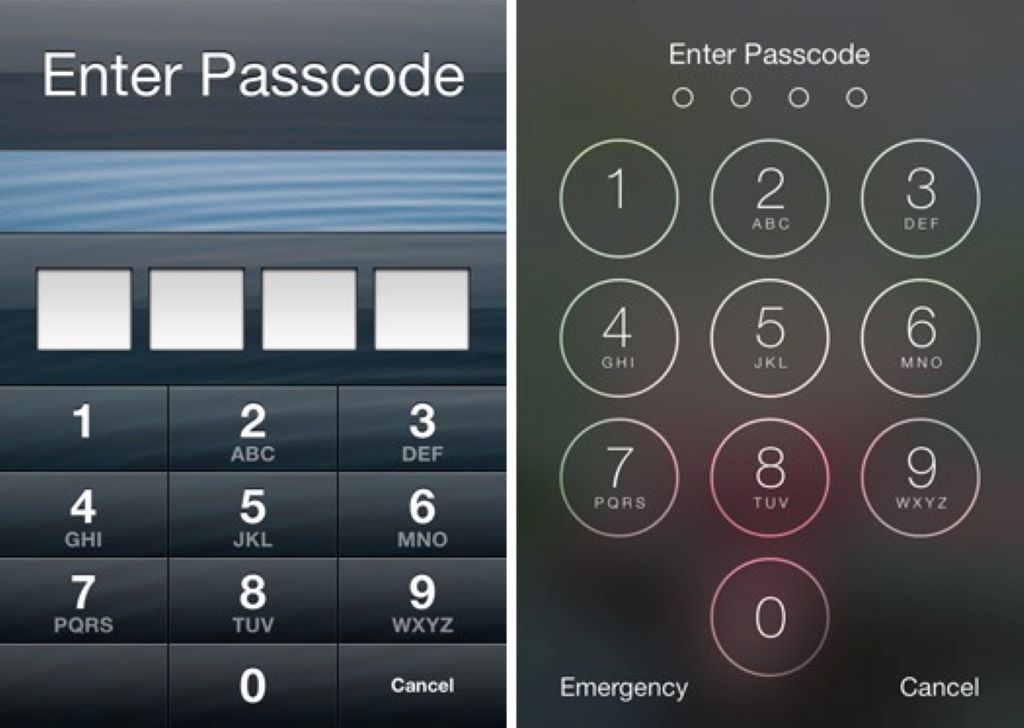
1. Unlock Your iPhone Using iTunes (or Finder on Mac)
If you’ve previously synced your iPhone with iTunes or Finder, this method is quick and effective.
Steps to Unlock Your iPhone with iTunes:
- Connect your iPhone to your trusted computer.
- Open iTunes (or Finder on macOS Catalina and later).
- Select your iPhone from the left panel.
- Click Restore iPhone to erase the device and remove the passcode.
- After restoration, set up your iPhone and restore your data from backup.
Pros:
- Works well if you have a recent backup.
- No need for third-party tools.
Cons:
- Requires a trusted computer.
- Data loss if no backup is available.
2. Unlock Your iPhone Using iCloud (Find My iPhone)
If Find My iPhone is enabled, you can unlock your device remotely.
Steps to Unlock via iCloud:
- Go to iCloud.com on a browser.
- Sign in with your Apple ID.
- Click Find iPhone and select your device.
- Choose Erase iPhone to remove the passcode.
- Set up your iPhone from scratch or restore from backup.
Pros:
- Works remotely from any device.
- Quick and easy.
Cons:
- Requires Find My iPhone to be enabled.
- Erases all data.
3. Unlock Your iPhone Using Recovery Mode
If you haven’t synced your iPhone with iTunes or enabled Find My iPhone, Recovery Mode is your last resort.
Steps to Unlock via Recovery Mode:
- Connect your iPhone to a computer and open iTunes or Finder.
- Put your iPhone into Recovery Mode:
- iPhone 8 or later: Press and release the Volume Up button, then the Volume Down button. Hold the Power button until the recovery mode screen appears.
- iPhone 7/7 Plus: Hold the Power and Volume Down buttons until the recovery mode screen appears.
- iPhone 6s or earlier: Hold the Home and Power buttons until the recovery mode screen appears.
- Select Restore iPhone in iTunes or Finder.
- Once restored, set up your device.
Pros:
- Works even if iTunes and iCloud aren’t set up.
- Completely resets the device.
Cons:
- Data loss is inevitable.
- Requires a computer.
Pro Tips to Prevent Future Lockouts
- Use Face ID or Touch ID – These eliminate the need to enter a passcode frequently.
- Write Down Your Passcode – Store it in a safe place.
- Enable iCloud Backup – Regular backups ensure you never lose important data.
- Set an Easy-to-Remember Code – Avoid overly complicated passcodes.
- Use Password Managers – Apps like 1Password or LastPass securely store passwords.
Read More: Managing Apple Pay and Credit Card Payments: A Beginner-Friendly Guide
FAQs
1. Can Apple unlock my iPhone if I forgot my passcode?
No. Apple cannot bypass security locks unless you provide proof of ownership.
2. Will unlocking my iPhone erase my data?
Yes. Unless you have a backup, all data will be lost.
3. How long will my iPhone be disabled after entering the wrong passcode?
After 10 failed attempts, your iPhone disables itself. You must restore it to regain access.
4. Can I unlock my iPhone without a computer?
Yes. If Find My iPhone is enabled, you can erase it via iCloud.com.
5. How do I reset my iPhone passcode without losing data?
If you forget your passcode, you must erase your device. Data recovery is only possible with a backup.
6. What if my iPhone says “iPhone Unavailable”?
This means too many incorrect attempts. You must use one of the methods above to reset it.
7. Is there third-party software to unlock my iPhone?
Yes, but use them cautiously. Apple does not endorse third-party unlocking tools.
Forgetting your iPhone passcode is frustrating, but these proven solutions will help you regain access. Always keep a backup to avoid data loss, and enable Face ID or Touch ID for effortless security. If you found this guide helpful, share it with others who may need it!
Read More: Why Your Charging Cable isn’t Working and How to Fix It